Cursor Space
Enhance browsing with free custom cursors for Chrome—cute packs, gaming styles, and animated pointers from the Chrome Web Store.
Whether you want a free custom cursor for Chrome, a cute everyday set, or something bolder, Cursor Space makes it simple to install from the Chrome Web Store and switch packs anytime.
One-click Add to Chrome—no risky sideloads required.
Browse themed packs on this site, then apply them in the extension.
Need a desktop changer? Download the offline Windows app below.
Go to the Cursor Space listing and review permissions.
Confirm the install. The extension appears in your toolbar in seconds.
Browse packs in the extension or on this site, then apply your favorite set.
Your custom cursor works across tabs. Switch or disable anytime in the extension.
What people are installing right now—open any pack to preview and add it.
 Bibata Modern Ice CursorEnhance your desktop with Bibata Modern Ice Cursor, a stylish and elegant custom cursor inspired by ice, perfect for a memorable user experience.
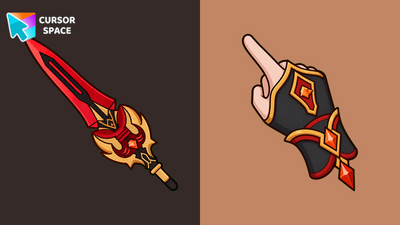 Staff of Homa Animated CursorStaff of Homa Animated Cursor on Cursor Space - crimson polearm arrow with a softly pulsing orange crystal on the hilt.
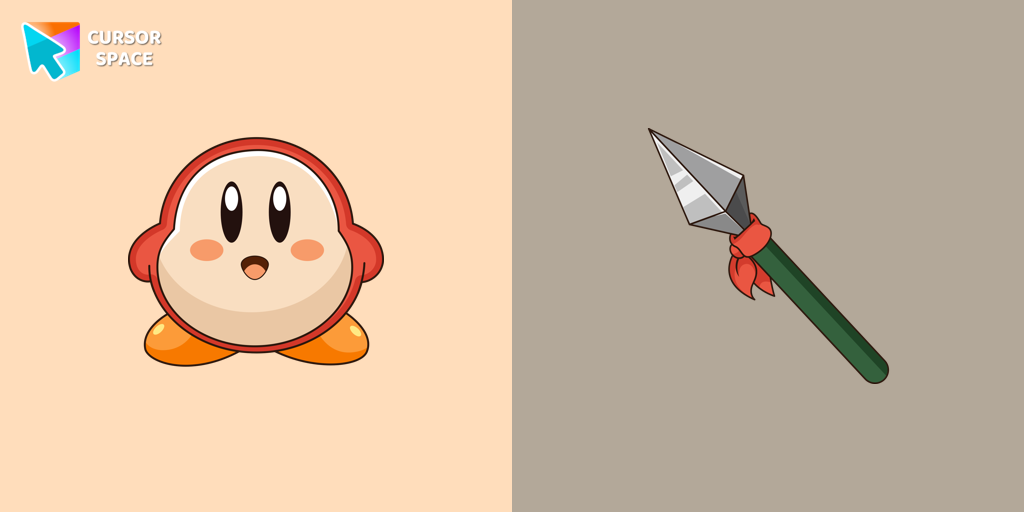 Waddle Dee cursorIntroducing the Waddle Dee custom cursor from our Games collection of cute cursors.
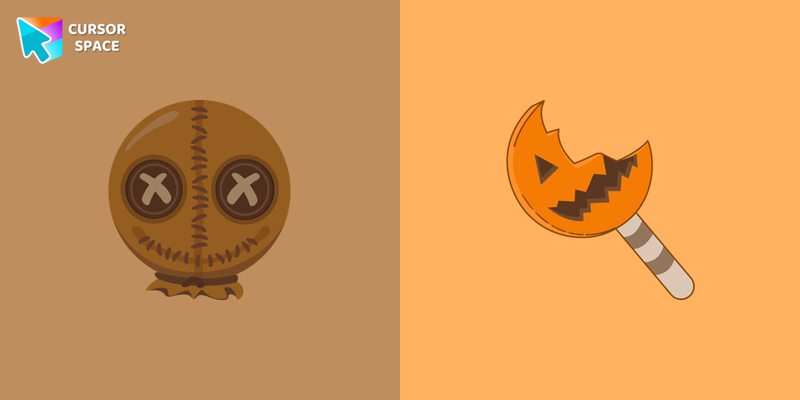 Trick r Treat Sam cursorIn our Halloween custom cursors collection, you will also find Trick r Treat Sam as a custom cursor for mouse and pointer.
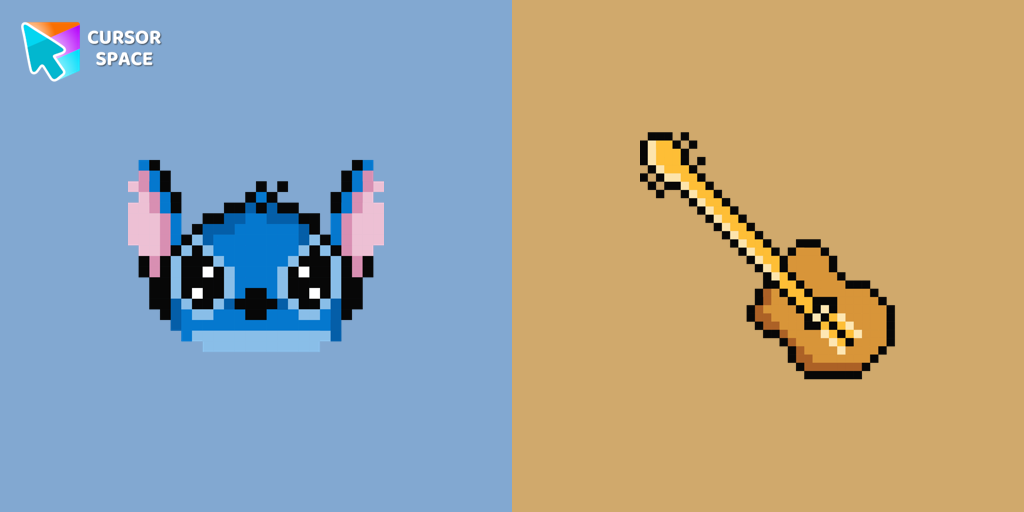 Stitch Pixel cursorThe only thing that can destroy Stitch Pixel Cursor from our custom cursors collection for Chrome is boring time on the Internet.
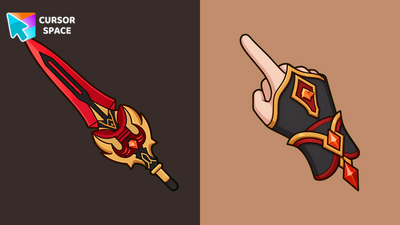 Staff of Homa CursorStaff of Homa Cursor on Cursor Space - crimson polearm tip arrow with a gold-trim pyro cuff pointing hand.
 Share Bear cursorShare the Joy with the Share Bear Cursor - Spreading Kindness Online
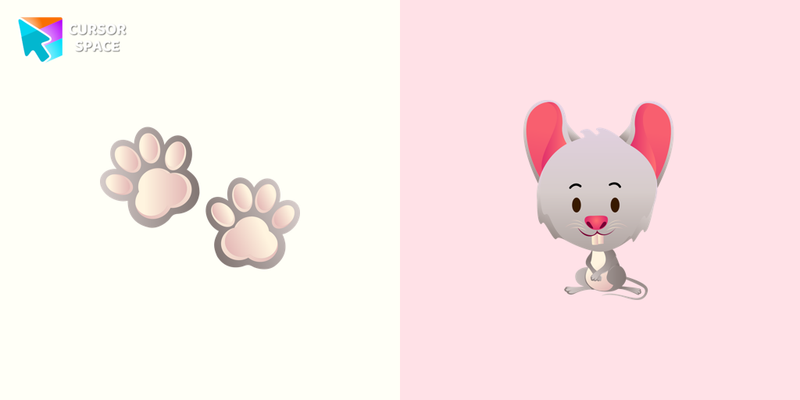 Mouse cursorThe little grey mouse cursor is illustrated for our adorable animals custom cursors collection for Chrome. Mouse footprints as a cursor for mouse and pointer will look pretty nice on your screen.
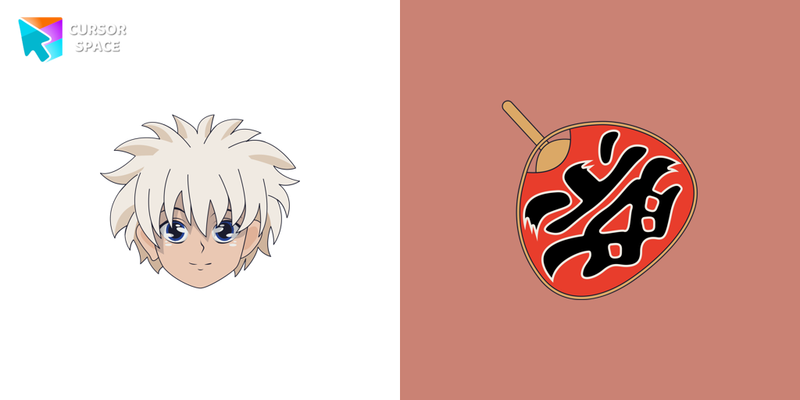 Killua Zoldyck cursorWe are glad to present this cute custom cursor with Killua Zoldyck from the adorable custom cursors collection for the mouse and pointer.
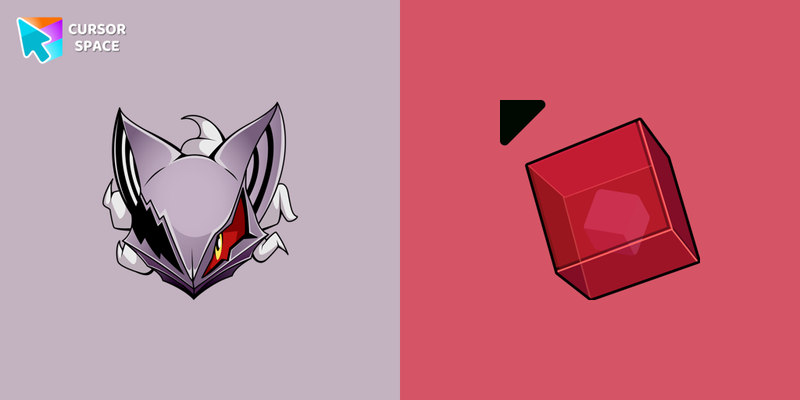 Infinite cursorInfinite is available in our Sonic the Hedgehog collection for Chrome as a custom cursor with a cool design.
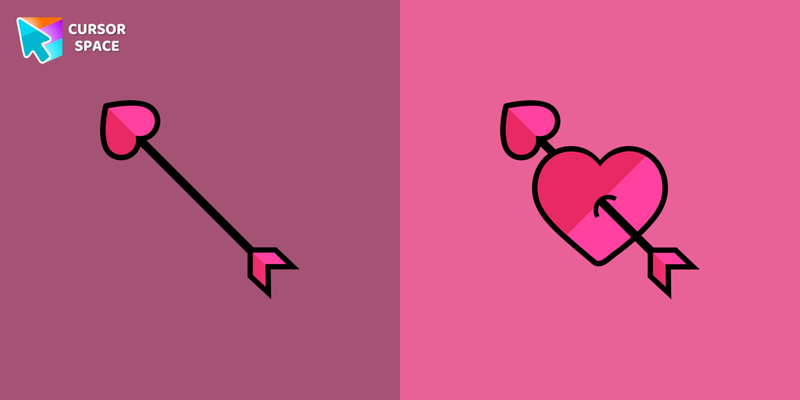 Heart cursorCupid's arrow cursor for the mouse will add a romantic mood to your everyday browsing. Heart cursor from our cutest custom cursors collection in a pretty design for mouse and pointers.
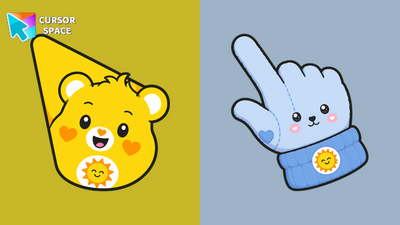 Funshine Bear CursorFunshine Bear Cursor on Cursor Space - sunny yellow teddy arrow and cheerful custom pointer.
Jump into the catalog by vibe, or open top packs and collections.
Quick answers to common questions about cursor packs, collections, and installation.
Open the Chrome Web Store listing, click “Add to Chrome”, confirm, then browse packs on this site or in the extension and apply one from the Packs tab. Refresh the page to see your new cursor.
Yes when you install from the Chrome Web Store. Cursor Space is distributed there with standard review. Prefer the official listing, keep the extension updated, and only install packs from trusted catalog pages.
Yes. Cursor Space for Chrome is free on the Chrome Web Store. Most packs on this site are free to apply with the extension.
Chrome and Microsoft Edge are officially supported. Other Chromium browsers may work, but Chrome and Edge are recommended.
Refresh the page, confirm the pack is active in the Packs tab, disable other cursor extensions, and test on another site—some pages block custom cursors.
Open the extension popup and restore the default cursor, or disable the extension from chrome://extensions without uninstalling it.
Open chrome://extensions, find Cursor Space for Chrome, and click Remove. Refresh open tabs to restore the system pointer.
Browser cursors need an extension. For the desktop outside Chrome, use a separate Windows cursor changer app.
Prefer a standalone app, or blocked from extensions? Download our free Windows cursor changer for Windows 7–11.
Download Windows app